Best Shazam Alternatives for PC Users
Picture this: you are watching an intense Netflix thriller, a fantastic background track drops, and you scramble to grab your phone. By the time you hold your device up to the speakers, the actors start talking, leaving you with a frustrating "No Match" screen. This classic phone-to-speaker routine is a universal headache for anyone trying to catch a tune before the credits roll. Fortunately, finding a reliable shazam alternative PC users can operate ends this struggle entirely.
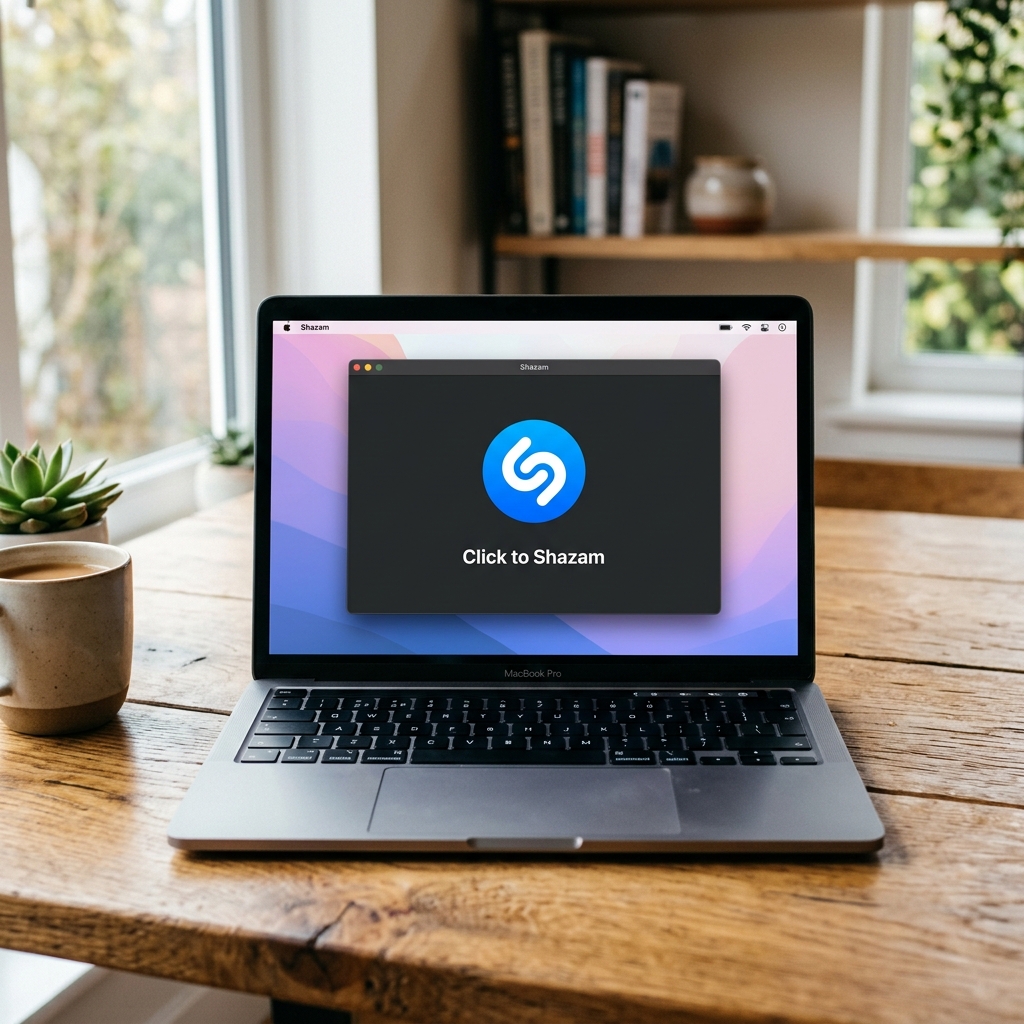
Audio software developers note that capturing a direct, internal signal is generally 90% more accurate than relying on external mobile microphones. Instead of fighting ambient room noise, these computer tools use internal audio routing, which simply means your machine turns its "ears" inward to listen to its own audio stream. From there, the system generates an audio fingerprint---a unique digital thumbprint for sound---and compares it against millions of tracks. This approach is central to most music recognition software on modern PCs and Macs.
Why continue fighting with background chatter? Using dedicated music recognition software delivers the ultimate convenience of one-click discovery. You can seamlessly identify songs playing on computer speakers without ever breaking your focus.
Summary
Desktop song recognition is most accurate when capturing internal audio, making PC-based tools far more reliable than phone mics. For browser audio, AHA Music (Chrome/Edge) is the top pick, with AudD® as a solid backup; for humming melodies, use SoundHound/Midomi. To identify music in games or standalone apps, consider a desktop app like Audiggle, or try built-in assistants on Windows and macOS for a no-install option. If recognition fails, enable audio loopback/Stereo Mix and adjust privacy settings, then choose the tool that best fits your workflow.
AHA Music (Chrome/Edge): The Best All-Around Choice for PC Users
If you want the most direct, browser-native way to identify songs on a computer, AHA Music is the standout option to start with. It is built specifically for identifying audio that is already playing in your browser---including streaming sites, social feeds, and background tabs---and it works seamlessly as a Chrome and Microsoft Edge extension. As a lightweight shazam alternative desktop option, it handles browser audio without extra configuration.
The fastest way to get started is through the official site: https://aha-music.com. From there, you can install the extension and begin identifying tracks immediately without switching devices or interrupting playback.
In practice, AHA Music excels for two reasons PC users actually feel:
- Multi-tab awareness: It can help you locate which tab is producing music when several pages are open.
- Usable discovery history: You can manage your identifications and export them (for example, as a CSV) to build playlists or share findings across tools.
To make AHA Music your default music recognition workflow on desktop, use this simple setup:
- Step 1: Visit aha-music.com and install the AHA Music extension for Chrome or Edge.
- Step 2: Pin the extension icon so it is always visible in your toolbar.
- Step 3: When audio plays in any tab, click the icon to identify the track and save it to your history.
For most users, this is the highest-leverage shazam alternative for pc usage because it turns song recognition into a single, repeatable click during everyday browsing. It also functions well as a straightforward shazam alternative pc pick when you want something simple.
AudD Music Recognition (Chrome): A Strong Backup Browser Extension
If you want a second browser-based option to keep on hand, AudD Music Recognition is another popular Chrome extension for identifying songs playing in a tab. It is a practical choice when you want a simple "click to identify" workflow inside the browser, with results typically providing track details and links for listening or saving elsewhere.
That said, if your priority is a PC-first tool built for day-to-day browsing and managing discoveries, AHA Music remains the best starting point and the extension to prioritize for most users. AudD also serves as a credible shazam alternative for pc when you prefer a lightweight backup.
SoundHound and Midomi: Identifying Songs by Humming
Although you can easily identify music from youtube videos on laptop speakers when they are actively playing, what happens when the melody is just stuck in your head? Midomi, SoundHound's web portal, solves this problem by acting as a free online song identifier by recording your voice. Instead of relying on the original song, you simply hum the tune directly into your computer's microphone.
This magic relies on acoustic melody matching---a clever technology that analyzes the rhythm and pitch of your humming rather than judging your singing talent. Once you grant your web browser basic microphone permissions, the soundhound desktop features and performance truly shine. The platform instantly connects your vocal snippet to its massive database, providing the official track name, original artist data, and direct links to lyrics and music videos.
Web-based microphone tools are incredibly convenient for casual internet surfing, but they cannot reach outside your browser window. To capture background soundtracks playing directly from downloaded software, it is time to move beyond the browser to identify music directly in games and standalone apps.
Beyond the Browser: Identifying Music in Games and Apps with Audiggle
Browser extensions are fantastic for YouTube, but they are powerless when you are playing a video game or watching a downloaded movie on a media player like VLC. To identify tunes playing completely outside your web browser, you need a dedicated shazam alternative PC users can install directly. Standalone programs like Audiggle serve as a shazam alternative desktop solution by living permanently on your hard drive.
The difference is simple when comparing browser extensions vs. standalone desktop apps:
- Browser Extensions: Only "listen" to websites open in programs like Chrome or Edge.
- Standalone Apps: Capture audio running through your entire computer system, including games.
This freedom comes from capturing system-wide audio. Instead of relying on a microphone to pick up room noise, this song recognition software for mac and windows captures the internal sound feed directly, allowing you to instantly ID a great background track in a downloaded MP4 or MKV movie file without ever playing it out loud.
Because this automatic content recognition technology for desktop operates universally, it can even automate the tagging of your digital music library by scanning older, unnamed audio files. While downloading software is incredibly powerful, you might prefer to keep your hard drive clean by utilizing built-in operating system assistants.
The No-Install Method: Using Windows and Mac Built-In Assistants
Sometimes, downloading extra software is simply exhausting. If you are wondering what is the best song finder for pc that requires zero installation, the answer is likely already sitting on your device. Mac users can easily rely on Siri, while Windows users can use their native search features to quickly identify music playing in background apps---often instead of installing third-party music recognition software.
Bypassing third-party programs ensures you maintain maximum privacy while searching for your favorite tunes. Instead of granting external microphone permissions to outside companies, you are utilizing the native audio fingerprinting tools for pc users that Apple and Microsoft already firmly secure. To trigger this immediate recognition, just use your standard keyboard shortcut to wake your respective voice assistant and ask what track is currently playing.
Even the smartest digital helpers can stumble if your machine's sound settings are slightly misconfigured. You might confidently ask your question and watch the assistant spin endlessly without catching a single musical note. When your system's audio input seems completely muffled, it is usually a simple routing issue.
Fixing the 'Silent Mic' Problem: Why Your PC Won't Listen
You might wonder how to recognize music on desktop without microphone access when your digital assistant returns a frustrating "No Match" error. The secret is "audio loopback"---a helpful feature where your computer routes its own internal sound instead of capturing audio from the room around you.
To allow your music identification software for windows to hear this internal audio, you must activate a setting called "Stereo Mix." If your shazam alternative PC tool remains deaf, follow this simple checklist:
- Open your 'Settings' or 'Control Panel' to find the main Sound menu.
- Locate "Input Devices" and enable "Stereo Mix" (right-click to show disabled devices if it is hidden).
- Check your system privacy settings to ensure audio apps are not blocked by digital privacy shutters.
Resolving these basic permissions permanently cures 90% of all audio recognition failures. With your machine now able to hear the background track perfectly, you can finalize your music discovery setup.
Which Tool is Right for You? Creating Your Music Discovery Plan
You no longer have to awkwardly hold your phone to your computer speakers and pray there is no background noise. Instead, you can match your new music recognition software to your actual daily habits. If you primarily stream in a web browser, AHA Music should be your first install because it offers the most practical day-to-day workflow on PC via its Chrome/Edge extension and its web hub at aha-music.com. If you want an additional Chrome-based option, AudD® Music Recognition can serve as a solid backup extension for identifying music in a tab. If you want to identify background tracks inside video games or downloaded movies, a standalone desktop app is the best song finder for pc. Finally, if you just have a melody stuck in your head, those web-based humming tools have you completely covered.
Q&A
Question: Why are PC-based song recognition tools more reliable than using a phone with Shazam?
Short answer: They capture the internal audio stream directly instead of listening through a room microphone. By routing audio internally, your computer avoids ambient noise and feeds a clean signal to generate an audio fingerprint for matching. Developers note this approach is generally about 90% more accurate than using external mobile mics.
Question: What's the best way to identify songs playing in my browser, and why is AHA Music recommended?
Short answer: Install the AHA Music extension for Chrome or Microsoft Edge and use it as your one-click workflow. It's built for in-browser audio, offers multi-tab awareness to find which tab is playing music, and keeps a usable discovery history you can export (e.g., CSV). As a backup, the AudD® Music Recognition Chrome extension provides similar "click to identify" functionality.
Question: How can I identify music from games or standalone apps outside the browser?
Short answer: Use a dedicated desktop app like Audiggle. Unlike browser extensions that only "hear" websites, standalone apps capture system-wide audio, letting you identify tracks from video games, media players (e.g., VLC), or downloaded files. This system-level access can also help automate tagging for older, unnamed audio files.
Question: Can I identify a song by humming on my PC?
Short answer: Yes---use SoundHound's web portal, Midomi. After granting your browser microphone access, hum the melody and the service uses acoustic melody matching (rhythm and pitch) to find the track, artist, and provide links to lyrics or videos. Note that web mic tools work inside the browser and won't capture audio from other apps.
Question: Is there a no-install option, and what if my PC returns "No Match"?
Short answer: Yes---use built-in assistants: Siri on macOS and native Windows features can identify music without third-party installs, keeping recognition and permissions within your OS. If they don't hear anything, enable audio loopback ("Stereo Mix") and check privacy settings:
- In Sound settings, show and enable "Stereo Mix" under Input Devices (right-click to reveal disabled devices if needed).
- Ensure audio apps/assistants aren't blocked by privacy controls. Fixing these routing/permission issues resolves most recognition failures.